Your sage to xero migration: UK guide for a smooth transition
So, you're thinking about making the jump from Sage to Xero. It's a move countless UK businesses are making, trading in their traditional desktop software for the flexibility of the cloud. This isn't just about switching brands; it’s about fundamentally changing how you interact with your business finances, making things more accessible, automated, and frankly, a lot less of a headache.
Is It Really Time to Ditch Sage for Xero?
If you’ve been running a business in the UK for any length of time, you’ve probably used Sage. For decades, it's been the go-to, a solid and dependable accounting workhorse. But let's be honest, the world has moved on. If you're feeling a bit stuck, wondering if your current setup is creating more problems than it solves, you're not alone. That's usually when the idea of a Sage to Xero migration first crops up.
This isn't about jumping on the latest tech bandwagon. It's a strategic decision rooted in the practical, day-to-day benefits that cloud accounting offers. Many business owners I talk to feel like their old software was built for their accountant, not for them. Xero’s biggest selling point has always been its simplicity: it’s designed to make managing your finances feel less like a chore.
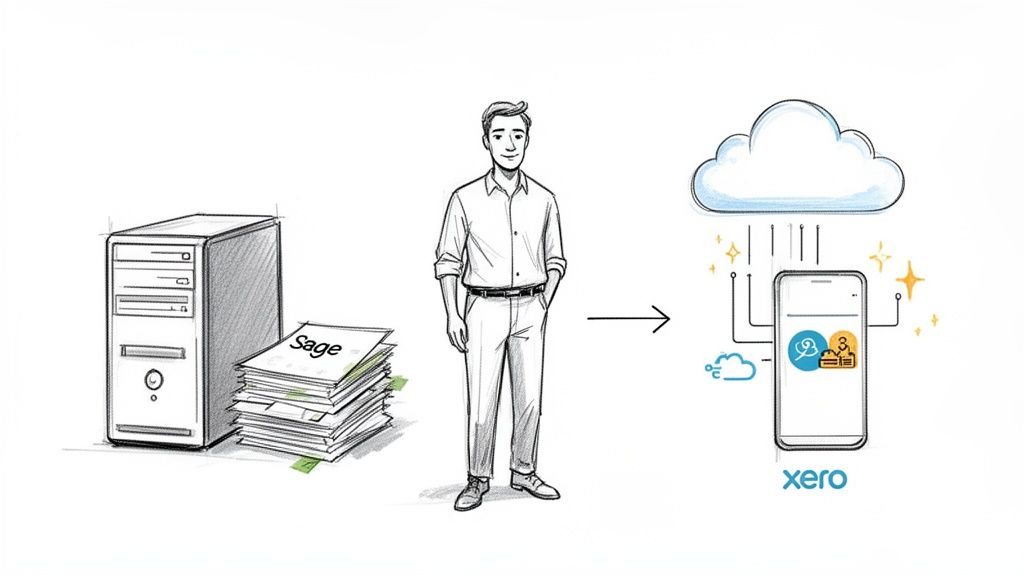
What’s the Big Deal About Switching?
At its core, moving to a platform like Xero is all about efficiency and freedom. You're no longer chained to that one office computer to raise an invoice or check your bank balance. For most businesses, the decision boils down to a few game-changing features:
- Work From Anywhere: Being on the cloud means you can log in from your laptop at a client's site, your tablet on the train, or your phone while grabbing a coffee.
- Live Bank Feeds: This is a huge one. Xero connects straight to your bank, pulling in transactions automatically. This feature alone can claw back hours of soul-destroying manual data entry every single month.
- An Interface You'll Actually Understand: The dashboard is clean, the navigation is straightforward, and you don't need an accounting degree to figure out what's going on. It’s built for business owners.
Don’t just take my word for it. The numbers tell the story. While Sage 50 still commands a respectable 39% of the desktop software market in the UK, the online world is a different beast entirely. When it comes to digital advertising, Xero absolutely dominates, pulling in 63.44% of clicks compared to just 11.03% for Sage. It’s a clear signal of where modern businesses are heading.
To help you see the practical differences at a glance, here’s a quick comparison of the two platforms.
Sage 50 vs Xero Key Differences for UK Businesses
This table breaks down the core features and operational models of Sage 50 and Xero, giving you a clearer picture of what a migration really means for your daily operations.
| Feature | Sage 50 | Xero |
|---|---|---|
| Platform | Primarily desktop-based software installed on a specific computer. | Fully cloud-based, accessible via any web browser or mobile app. |
| Accessibility | Limited to the device where it's installed, with some clunky remote options. | Access your data anywhere, anytime, on any device with an internet connection. |
| Bank Feeds | Manual import of bank statements or through a bolt-on service (Bank Feeds). | Direct, automatic bank feeds are a core feature, updating daily. |
| User Interface | Traditional, complex interface geared towards accountants. | Modern, intuitive dashboard designed for business owners without an accounting background. |
| Collaboration | Difficult for multiple users (e.g., owner and accountant) to work at once. | Unlimited users can collaborate in real-time, with customisable permissions. |
| Integrations | Limited number of integrations, often requiring custom development. | A massive ecosystem of over 1,000 third-party apps for everything imaginable. |
| Pricing Model | Annual licence fees, often with additional costs for support and upgrades. | Monthly subscription model with clear, tiered pricing. |
| Mobile App | Basic functionality, often limited to viewing data or capturing expenses. | A powerful, full-featured app for invoicing, reconciling, and expense claims. |
Looking at them side-by-side, it's clear that the move from Sage 50 to Xero is a shift from a closed, localised system to an open, connected, and far more flexible way of working.
It’s More Than Just the Basics
Another massive draw for Xero is its sprawling app marketplace. This lets you connect specialised tools and build a financial tech stack that’s perfectly suited to your business.
For example, a service like Receipt Router integrates seamlessly to handle all your receipt and invoice processing. Instead of a shoebox full of paper or a chaotic inbox, you just forward an email, and the data is captured, processed, and filed away in Xero automatically.
This is where the magic really happens. That kind of integration turns mind-numbing admin into a smooth, automated workflow. It means your year-end isn't a frantic scramble; it's just a calm, organised review of data that’s been kept tidy all year long.
If you're still weighing your options, our guide on comparing accounting packages offers a deeper dive. But ultimately, the decision to move from Sage to Xero is about choosing a system that won’t just keep up with your business but will actively help it grow.
Your Pre-Migration Checklist for a Smooth Switch
Jumping into a software migration without a plan is like moving house without packing boxes first. It's a recipe for chaos, things get lost, and you’re left with a huge mess to sort out. A bit of prep work before your Sage to Xero switch makes all the difference, ensuring you get off to the best possible start.
Think of it as getting your financial house in order before the move.
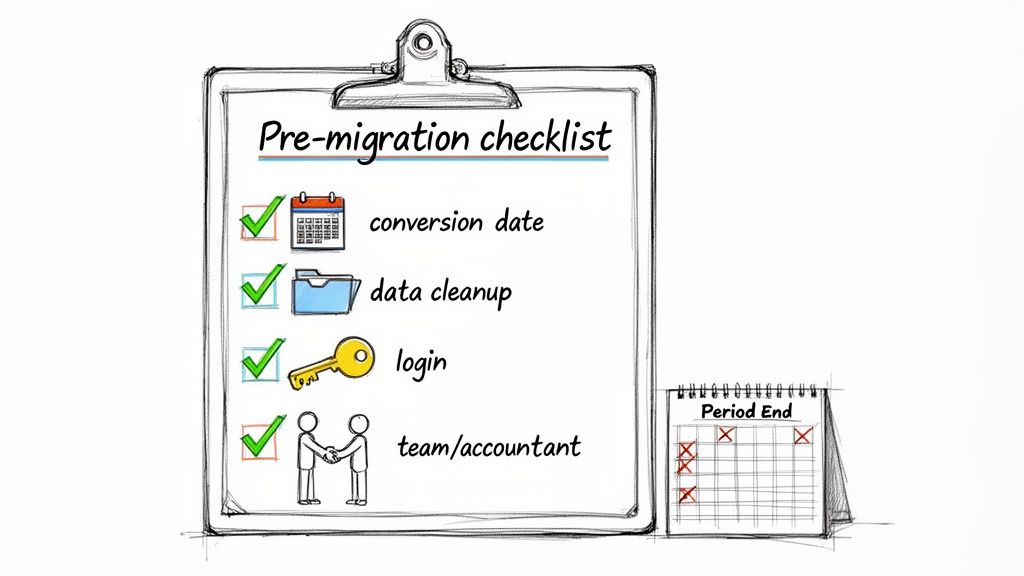
A solid checklist is the first step to achieving the kind of clarity and simplicity you're aiming for. Let's walk through it.
Choose Your Conversion Date Wisely
Honestly, timing is everything with a migration. Your conversion date is the day you officially stop using Sage and go live in Xero. The golden rule here is to align this with the end of a financial period. It will save you so many headaches.
For most UK businesses, the best options are:
- The end of a financial year: This is the gold standard. It gives you a perfectly clean cut-off for annual reporting.
- The end of a VAT quarter: This is another brilliant choice. It makes your first VAT return in Xero a breeze.
- The end of a month: If the other two aren't practical, at the very least, pick a month-end. Trying to split a month's transactions between two systems is a nightmare you don't need.
A well-chosen conversion date prevents messy mid-period reconciliations. It’s far easier to draw a line in the sand on the 31st of a month than on the 17th.
Clean Up Your Sage Data
You wouldn't move dusty old boxes you haven't opened in years to a new house, would you? The same applies here. Don't carry old clutter into your shiny new Xero account. This is a crucial step that so many people skip, and they almost always regret it.
Start by tidying up your contacts. Archive any old customers or suppliers you haven't dealt with for ages. It’s also the perfect time to merge any duplicate entries that have snuck in over the years. If you want to make sure everyone follows the same process, it helps to create a step-by-step guide for your team to follow.
Next, get your sales and purchase ledgers in order. Match up any outstanding credit notes to their corresponding invoices and, most importantly, make sure every bank account in Sage is fully reconciled right up to your chosen conversion date. This is non-negotiable if you want your opening balances in Xero to be 100% accurate.
This is also a great time to think about future-proofing. Adopting a proper document management system can stop this kind of data clutter from building up again.
Gather Your Logins and Get Your Team Onboard
This might sound simple, but you'd be surprised how much time can be wasted scrambling for passwords. The migration will involve dipping in and out of multiple accounts, so get all your credentials ready. You’ll need administrator logins for Sage, your new Xero account, and likely your online banking.
Finally, loop everyone in. Make sure your accountant, bookkeeper, and any staff who use the software know what’s happening. Give them a clear timeline, explain the benefits of the switch, and manage expectations for the changeover period. Getting your team on board from the start makes the whole thing feel less like a chore and more like a positive step forward.
Getting Your Data Out of Sage
Right, let's get our hands dirty. Pulling your financial history out of Sage is the first big, practical step in this whole process, and honestly, it’s not as scary as it looks. The main goal here is to package up your data into a format that Xero can actually read, which, for the most part, means exporting everything as CSV files. Think of them as simple, universal spreadsheets.
But this isn't just about clicking an 'export' button a few times. You need to be methodical. It’s like packing up your house before a move; you wouldn't just throw everything into random boxes. You'd label them 'Kitchen', 'Bedroom', 'Important Documents' so you know exactly where things go when you get to your new place. We're doing the same thing, but with your financial data.
What You Absolutely Need to Export
Before you start clicking around, let's be clear on what data you actually need to grab from Sage. It’s tempting to try and export every single transaction from the last ten years, but that's a recipe for a messy, complicated start in Xero. We're aiming for a clean break.
Here’s the shortlist of essentials for a smooth Sage to Xero switch:
- Chart of Accounts: This is the skeleton of your entire accounting system. It’s the master list of all your accounts: sales, rent, bank accounts, you name it, and their nominal codes.
- Customer and Supplier Lists: Pretty straightforward. This is all the contact info for everyone you do business with.
- Opening Trial Balance: This is a crucial snapshot of all your account balances on the day you switch. Getting this right ensures your books are perfectly balanced from day one in Xero.
- Outstanding Invoices and Bills: You'll need a list of every unpaid sales invoice (Aged Receivables) and every outstanding supplier bill (Aged Payables) as of your conversion date.
Nail these four things, and you're 90% of the way there. This is the foundation Xero needs to pick up exactly where Sage left off.
Exporting Your Chart of Accounts and Contacts
Let's start with the easy wins. In most versions of Sage 50, you can pull these lists directly from their respective modules.
For your Chart of Accounts, you'll want to head over to the 'Nominal codes' section. From there, you can usually select the full list and find an option like 'Send to Excel' or 'Export'. This will spit out a spreadsheet with your nominal codes, account names, and categories: the blueprint for your financial setup in Xero.
It’s a very similar story for your customers and suppliers. Just pop into the 'Customers' or 'Suppliers' module, make sure all your records are displayed, and export the list. Double-check that your export includes the important stuff like names, addresses, and email addresses. A clean contact list will make sending that first invoice from Xero an absolute breeze.
Dealing with Opening Balances and Old Data
This is where it gets a little more technical, but stick with me because it’s completely doable. Your opening trial balance has to be spot-on. In Sage, you can run a Trial Balance report for the period ending on your chosen conversion date and export it straight to a spreadsheet. This report is your single source of truth for setting up your opening balances in Xero.
Now, what about all your historical transactions? You’ve got a choice to make. While some migration services can pull over a couple of years of data, many businesses find it far simpler just to start fresh.
From my experience, the best approach is often to bring over only your opening balances, along with your outstanding invoices and bills. Keep a final, read-only backup of your Sage data somewhere safe. This gives you a lean, fast Xero account without it being bogged down by years of old transactions you'll probably never look at again.
This "clean slate" approach is a big reason why so many are making the switch. The move from Sage to Xero in the UK is really being driven by small businesses looking to be more nimble. Data from Enlyft highlights that while 35% of Sage 50's global customers are in the UK, the real migration story is among businesses with fewer than 50 employees who are flocking to the cloud. You can dig into the Sage 50 market landscape and user trends on acecloudhosting.com for more detail. They want the modern tools Xero offers, like multi-currency features that are a godsend for anyone working with international clients.
To get your outstanding invoices and bills, you'll just need to run two final reports in Sage:
- Aged Debtors Report: This shows you every penny your customers still owe you.
- Aged Creditors Report: This lists all the bills you still need to pay your suppliers.
Make sure you run and export both of these reports as of your conversion date. Once you have these files saved and clearly labelled alongside your trial balance, you're officially ready for the next stage: moving everything into its new home.
Right, you've done the prep work and your Sage data is clean, exported, and ready for its new home. Now for the exciting bit: actually bringing it all into Xero. This is the moment your new Xero account transforms from an empty shell into a living, breathing accounting system.
The whole process revolves around Xero’s own import templates. Think of them as perfectly formatted spreadsheets just waiting for your data.
But here's the crucial part: you can't just throw the files in randomly. There’s a specific, logical order to follow. Get this right, and everything else will click into place smoothly.
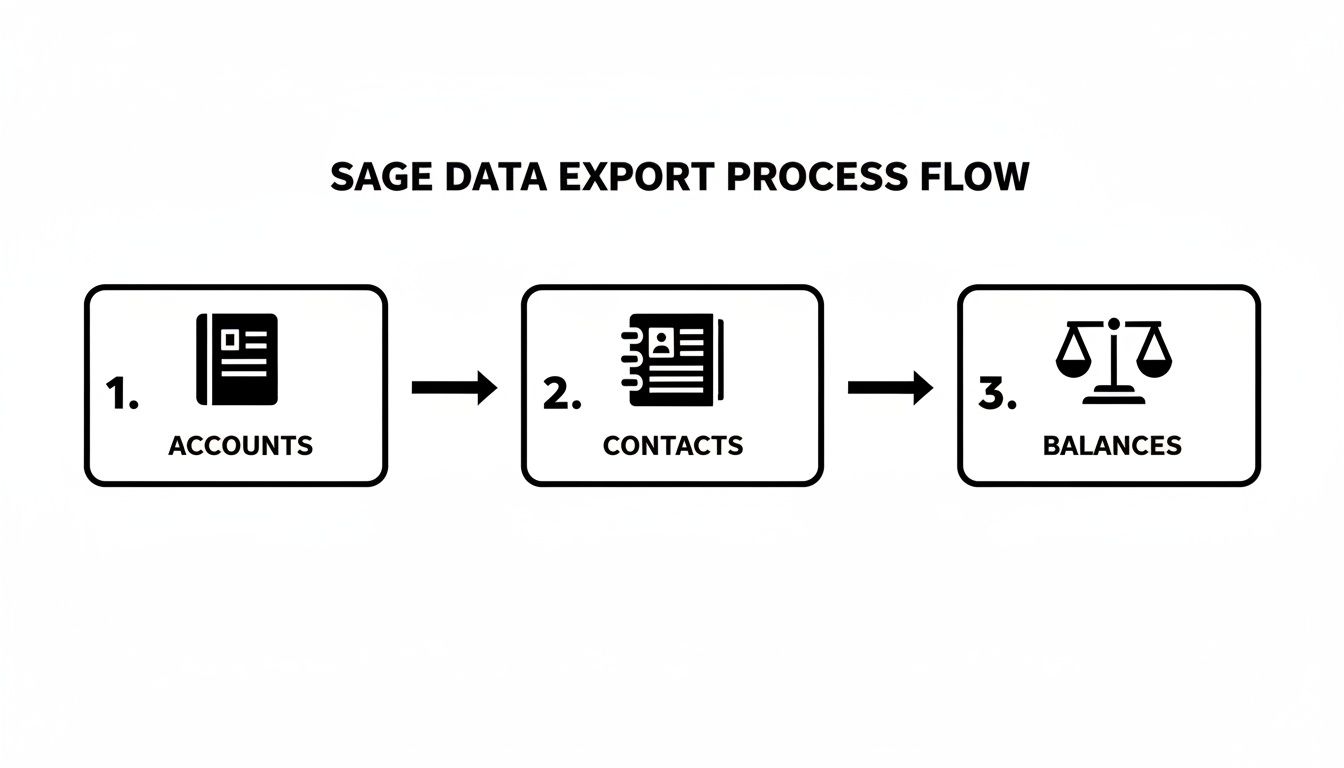
This diagram shows the core building blocks. You start with the foundational accounts, add your contacts, and then bring in the balances to complete the picture.
Following the Correct Import Order
The import sequence is non-negotiable because each step builds on the one before it. It’s like building a house: you have to lay the foundation before you can put up the walls.
-
First up: The Chart of Accounts. This is your absolute first import. It sets up the entire financial structure of your business inside Xero, defining every category for your income, expenses, assets, and liabilities. Without it, Xero has no idea where to put any of your transactions.
-
Next: Contacts (Customers and Suppliers). With your accounts in place, you can bring in your customer and supplier lists. This populates your system with all the people and businesses you trade with.
-
Finally: Opening Balances and Invoices. This is the last piece of the puzzle. You’ll import your trial balance to set the opening figures for each account, then upload your outstanding sales invoices and supplier bills. This ensures Xero reflects your precise financial position on the day you switch.
Getting this sequence right saves you from a world of headaches. For instance, if you try to import an outstanding invoice for a customer that doesn't exist in the system yet, the import will simply fail.
Mapping Your Sage Data to Xero Templates
For each data type, Xero provides a downloadable CSV template. Your main job is to copy the information from your exported Sage files and paste it into the correct columns in the Xero templates. This is what we call data mapping.
It sounds straightforward, but this is where tiny mistakes can creep in. Sage might call a field "Contact Name," while Xero calls it "ContactName" (with no space). You need to pay close attention to the column headers in the Xero template and be sure you're putting the right data in the right place.
A common trip-up I see is formatting. Xero can be very particular about how it likes things, especially dates (DD/MM/YYYY) and numbers (no currency symbols like £). A quick double-check of your spreadsheets before you hit upload can save you a ton of time fixing errors later.
This manual mapping process is also your last chance for a final data cleanse. As you're transferring contact details, you might spot a typo in an email address or an old phone number that can be deleted. It’s a great opportunity for one last polish before going live.
DIY Migration or a Professional Service?
Now for the big question: should you tackle this yourself or call in the pros? Honestly, there’s no single right answer. It really comes down to your confidence with spreadsheets, how complex your data is, and what your budget looks like.
The DIY Approach
Going it alone is obviously the cheapest option, and it gives you total control. If your Sage data is pretty clean, you only have a few years of history to worry about, and you’re comfortable in Excel, a DIY migration is completely doable. Xero’s own help guides are fantastic, and if you follow the steps methodically, you'll be fine.
Using a Migration Service
On the other hand, if the idea of data mapping fills you with dread or you're sitting on years of complex transactions, a professional service is a very smart investment. Specialised tools like Movemybooks can automate almost the entire process. You grant them access, and they transfer up to two years of historical data directly into Xero, often in just a few hours.
This convenience has a price tag, of course, but it massively reduces the risk of error and frees you up to, you know, actually run your business.
To help you weigh it up, here's a rough breakdown of what to expect in terms of time and money for the switch.
Estimated Timeline and Costs for Sage to Xero Migration
This table breaks down the potential time commitment and financial costs for different migration approaches, helping you budget for the switch.
| Migration Method | Estimated Timeline | Estimated Cost | Best For |
|---|---|---|---|
| DIY Migration | 1-3 days | £0 (just your time) | Businesses with simple, clean data and some confidence with spreadsheets. |
| Automated Service | 3-5 hours | £150 - £300+ | Businesses wanting a quick, hands-off migration of up to 2 years of data. |
| Accountant-Led | Varies | £500 - £1,500+ | Companies with very complex data, multi-currency needs, or who want an expert to manage the entire switch. |
Ultimately, whether you do it yourself or hire help, the goal is the same: to have a fully configured Xero account that accurately reflects your business's finances, ready for you to hit the ground running from day one.
Post Migration Checks to Ensure Accuracy
Right, you’ve done the heavy lifting and moved your data from Sage to Xero. That’s a huge milestone, but we're not quite over the finish line yet. Think of this next bit as the final snagging list you'd do after moving house. It’s all about making sure your new financial home is built on solid, accurate foundations.
This final check is your best chance to spot any small discrepancies before they snowball into bigger headaches down the road. A few careful reviews now will give you total confidence that your numbers are spot on from day one in Xero.
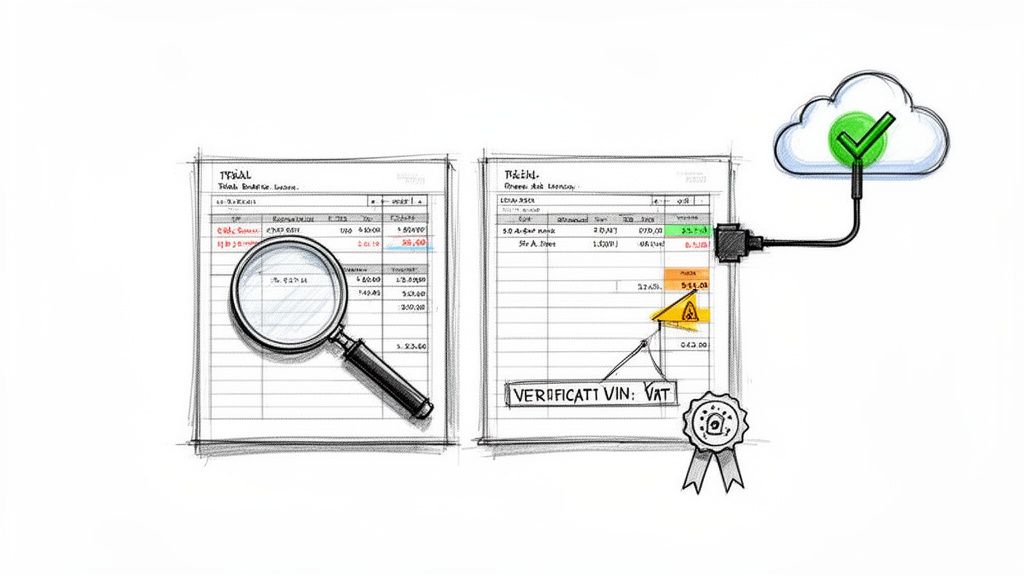
Run Your Key Reports Side by Side
The quickest and most effective way to verify everything is to run the same reports in both Sage and Xero. The goal is simple: the totals should match perfectly for your conversion date. This is how you confirm all your opening balances have landed correctly.
I always start with these three reports:
- Trial Balance: This is the big one. Your closing trial balance from Sage must match your opening trial balance in Xero to the penny. If these numbers align, you can be pretty confident the rest of the migration went smoothly.
- Aged Receivables (Debtors): Pull this report in both systems. Does the total amount your customers owe you match up? It’s also worth spot-checking a couple of individual customer accounts to make sure their outstanding invoices have been brought over correctly.
- Aged Payables (Creditors): Now do the same for your suppliers. The total you owe them should be identical. Again, a quick look at a few individual supplier balances is a smart move.
If these three reports line up, you can breathe a massive sigh of relief.
Reconcile Your Bank Accounts Immediately
With your historical data checked off, it’s time to get your live bank feeds connected. This is one of the best features in Xero, so you’ll want to get it up and running straight away. Once connected, your bank transactions will start flowing in automatically.
Your very first task should be a bank reconciliation. The closing balance from your final bank rec in Sage should be the opening balance in Xero. As soon as your first transactions appear, check that the statement balance in Xero matches the actual balance in your online banking. You can find more detail on this process here: https://receiptrouter.app/blog/reconcile-bank-statements.
A common trip-up I see is people forgetting about unpresented cheques or payments that were recorded in Sage but hadn't actually cleared the bank by the conversion date. Make sure you account for these in Xero to avoid a reconciliation nightmare right at the start.
To help ensure accuracy and a smooth reconciliation in Xero, some people find an AI-powered bank statement analyzer useful for these post-migration checks.
Look Out for Common Pitfalls
Even with the most careful planning, a few little issues can pop up. Knowing what to look for makes them much easier to fix.
Many UK businesses are used to desktop software. Sage 50, for example, holds a huge chunk of the market, around 39% among small businesses. This familiarity with desktop systems can mean cloud-specific settings in Xero get overlooked, so it’s worth a final check.
Here are a few things I always keep an eye on:
- Incorrect VAT Settings: Jump into your financial settings in Xero and double-check that your VAT scheme (e.g., Standard, Flat Rate, Cash) and VAT number are correct. A wrong setting here can cause a real mess with your first VAT return.
- Opening Balance Discrepancies: If your trial balance is off, it’s often just one rogue figure. Go through the report line by line; it’s usually a simple typo that’s easy to find and edit.
- Bank Feed Start Date: Make sure your bank feed is set to start pulling in transactions from the day after your conversion date. You don’t want it importing transactions that are already included in your opening balances from Sage.
Once you’ve completed these checks, you're officially good to go. You can now confidently use Xero as your single source of financial truth.
Got Questions About Moving from Sage to Xero?
Let’s be honest, even with the best plan in the world, switching your accounting software from Sage to Xero is a big deal. You’re bound to have a few questions swirling around about how long it’s all going to take, what data you can bring with you, and what classic blunders to avoid.
It’s completely normal to want a bit of clarity before you dive in. So, let's walk through some of the most common queries we hear from business owners making the switch. Getting these answered now will save you a lot of headaches later.
How Long Will the Migration Actually Take?
This is the big one, isn't it? The honest answer is… it depends. The timeline really hinges on how complex your accounts are and which path you choose to get there.
If you’re planning a Do It Yourself (DIY) migration, you’ll want to block out a full day or two. And that’s not just for the button-clicking part of the import. You've got to factor in time to clean up your Sage data, wrestle with Xero's import templates, get everything uploaded in the right sequence, and then do all your essential post-migration checks. Trying to rush this is a recipe for disaster.
On the flip side, using a specialist migration service like Movemybooks can be incredibly quick. These tools are built to do all the heavy lifting for you. Once you hand over access to your Sage data, the conversion itself often only takes a few hours. It’s a brilliant option if you can't afford to have your accounts out of action for long.
Our top tip? Aim to make the final switch on a Friday afternoon. This keeps disruption to a minimum and gives you the whole weekend to poke around, run your checks, and get a feel for Xero before the chaos of a new week begins.
Can I Bring All My Old Sage Data With Me?
Another massive question. Technically, you can move years and years of transaction history over, but it’s rarely a good idea. Most automated tools will, by default, only bring across the current financial year's data plus the previous one.
There's a good reason for this. Shifting a mountain of historical data can make your shiny new Xero account feel slow and cluttered right from the very start. Sometimes, a fresh, clean start is exactly what you need.
Here’s what most accountants would tell you is the best way to handle your old records:
- Export Key Reports: Before you say a final goodbye to Sage, save crucial reports like your Profit & Loss and Balance Sheet for the last several years as PDFs.
- Take One Last Backup: Create a complete, final backup of your entire Sage company file. Don’t skip this!
- Archive Everything Safely: Pop these reports and the backup file into a secure, easy-to-access spot like Google Drive or Dropbox.
This way, you start life in Xero with a lean, efficient system, but you still have all your historical data safely tucked away for compliance or future reference. It’s the best of both worlds.
What Are the Most Common Pitfalls to Avoid?
Learning from other people's mistakes is the smartest way to ensure a smooth migration. Most errors aren't catastrophic; they’re usually just small, annoying issues that pop up from a lack of prep. A little bit of foresight goes a very long way.
The single biggest cause of migration headaches? Messy data. If your Sage file is a bit of a state before you begin, all you're doing is moving those problems over to Xero.
Here are the top three culprits to look out for:
- Unreconciled Bank Accounts: This is a hard stop. If your bank accounts in Sage aren't reconciled right up to your switch-over date, your opening balances in Xero will be wrong from day one.
- Mismatched Invoices & Credit Notes: Don't leave old credit notes just hanging around. Make sure they are all properly matched to their corresponding invoices in Sage before you export anything.
- Forgotten Draft Invoices: Any invoices left as a 'draft' in Sage won't show up on your Aged Receivables report, meaning they'll get left behind during the migration. Get them finalised first.
Doing one last VAT return in Sage right before you migrate is another game-changer. It draws a clean line in the sand, making your first VAT return in Xero a whole lot simpler. Tidy up these few areas, and you'll be setting yourself up for a much smoother ride.
Ready to automate the most tedious part of your accounting? Receipt Router connects seamlessly with your new Xero account to handle all your receipts and invoices automatically. Forward an email, and we do the rest. Stop chasing paper and start saving hours.