How to Send Scanned Documents by Email Without the Headaches
You'd think sending a scanned document by email would be a simple case of 'attach and send'. But as anyone who's ever tried to get their expenses in on time knows, it's rarely that straightforward. What should take seconds can quickly turn into a frustrating battle with bounced emails and mysterious error messages.
Why Is Sending a Scan So Annoying?
Ever meticulously scanned a pile of receipts, attached them to an email, hit 'send', and then got that soul-destroying 'delivery failed' notification a moment later? You are definitely not alone. For freelancers and small businesses, it's a common admin headache.
The problem, almost every single time, boils down to the surprisingly strict attachment size limits set by email providers like Gmail, Outlook, and Office 365.
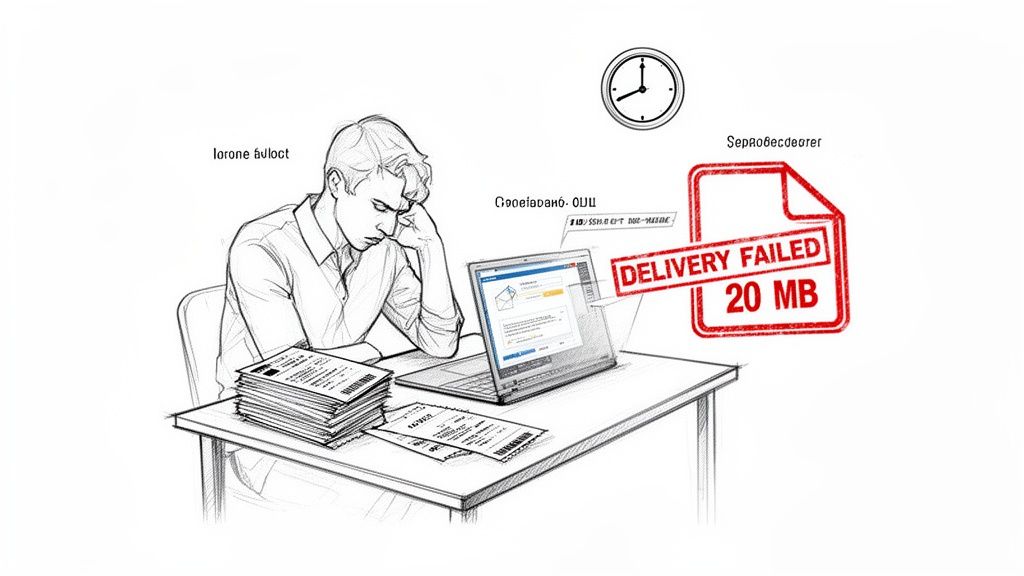
These limits aren't just there to be difficult; they cause real-world problems. Think about trying to email a multi-page signed contract to a new client. Each page, scanned at a decent quality so it's actually readable, adds to the total file size. Before you know it, you’ve exceeded the limit and your important email bounces right back.
It's the same story when you're trying to submit scanned evidence to HMRC or send a batch of expense receipts to your accountant. It's a surprisingly common bottleneck.
The Problem With File Size Limits
This is a particularly big issue in the UK. Office 365, which is incredibly popular with businesses, often defaults to a 35MB maximum attachment size. Gmail is a bit stricter at 25MB. For sole traders using a standard Outlook account, that limit can plummet to just 20MB for everything combined.
This is why the 'scan to email' feature on office printers so often fails when you try to send the scan outside your own company. The email hits the external server's limits and gets rejected. In fact, one survey found that a staggering 62% of small businesses have had emails fail because of oversized scanned receipts, which is a massive drain on time and productivity. You can read more about these email attachment challenges to see just how widespread the issue is.
When this happens, you're forced into a frustrating cycle of time-wasting workarounds. You probably find yourself:
- Manually splitting up files: Painfully breaking a single document into several smaller PDFs and sending them across multiple emails.
- Scanning everything all over again: Going back to the scanner, lowering the quality settings, and hoping for the best.
- Using online compression tools: Hunting for a website to shrink your PDF, adding yet another step to a simple task.
This isn't just an inconvenience. It's an administrative burden that steals your most valuable resource: your time. That’s time you should be spending on running your business, not fighting with your inbox. The first step to sending scanned documents effectively is understanding why the process fails in the first place.
Your Toolkit for a Perfect Scan Every Time
Getting a clear, usable scan is the first and most important step in this whole process. It’s tempting to just snap a quick picture and call it a day, but a little bit of prep work here goes a long way. Let's look at the best tools for the job, so you always start with a high-quality digital copy.
Really, you've got two main options: a traditional flatbed scanner or a scanning app on your phone.
Each has its place, of course. A physical scanner is a workhorse, brilliant for ploughing through high-volume, multi-page documents. But for the day-to-day receipts and single-page invoices that most of us freelancers and small business owners deal with, a phone app is almost always quicker and more convenient. Modern smartphone cameras are fantastic and more than capable of capturing crisp, clear images.
Choosing Your Scanning Method
Deciding between a mobile app and a dedicated scanner can feel like a tough choice, but it really comes down to what you're scanning most often. Here’s a quick breakdown to help you pick the right tool for your situation.
| Feature | Mobile Scanner App (e.g., Adobe Scan) | Traditional Scanner |
|---|---|---|
| Best For | On-the-go receipts, single invoices, quick captures | Multi-page documents, high-volume batch scanning |
| Convenience | Excellent since it's always in your pocket | Requires desk space and a computer connection |
| Speed | Very fast for single documents | Slower setup, but faster for many pages at once |
| Quality | Great for most text-based documents | Excellent, especially for high-resolution images |
| Cost | Often free or low-cost | One-time hardware investment (£50-£200+) |
Ultimately, for most freelancers, a good mobile app is the perfect starting point. You can't beat the convenience, and the quality is more than enough for professional use.
Your Phone Is Now Your Scanner
Mobile apps have completely changed the game. What used to need bulky, expensive hardware can now be done with the phone you already carry everywhere. Apps like Adobe Scan or Microsoft Lens are my go-to recommendations because they do so much more than just take a picture.
These apps were built specifically for capturing documents, and they have some clever features that make a huge difference:
- Automatic Edge Detection: The app intelligently finds the borders of your receipt and crops out the background. No more sending clients a picture of your messy desk!
- Image Enhancement: They automatically tweak the contrast and brightness, turning a shadowy, off-kilter photo into a sharp, professional-looking document that’s easy to read.
- Perspective Correction: Even if you take the photo at a slight angle, the app flattens it out, making it look like it just rolled off a proper flatbed scanner.
Think of it like this: a normal photo is just a picture of a receipt, but a scan from one of these apps is a digital version of the receipt itself. That distinction is crucial for looking professional and making sure the information is perfectly clear.
To get that perfect result every time, it's worth learning how to properly convert scanned documents to PDF, which keeps everything looking sharp and universally compatible.
Getting the Best from a Physical Scanner
If you’re using a traditional scanner, a few small tweaks to the settings can save you a massive headache later. It might seem a bit tedious, but spending 30 seconds in the settings menu can prevent those dreaded "file too large to send" errors.
Before you hit 'scan', give these settings a quick look:
- Resolution (DPI): This stands for "dots per inch." For most documents, 300 DPI is the sweet spot. It gives you fantastic clarity without creating a gigantic file. Anything higher is usually overkill for emailing.
- Colour Mode: Does that receipt really need to be in full colour? Probably not. Scanning in Black & White or Greyscale will create a much, much smaller file than a full-colour scan, with no loss of important information.
- File Format: Always, always choose PDF over image formats like JPEG for documents. PDFs are the universal standard for business, and they let you keep multiple pages neatly bundled in a single file.
If you're leaning towards the app route, you can learn more about finding the perfect receipt scanner app in our detailed guide.
Whether you use your phone or a dedicated scanner, getting that initial scan right saves a tonne of time and frustration down the line. A clean starting point makes every other step, from optimising to sending, a whole lot smoother.
How to Tame File Sizes Without Losing Quality
You’ve just taken a perfect, crystal-clear scan of an important document. Fantastic. The only problem? It’s a digital monster, far too big to cram through the tiny door of your email provider's attachment limit. It’s a classic stumbling block, but trust me, getting that file size down without turning your document into a blurry mess is easier than you’d think.
This is a really common headache for small businesses here in the UK. Attachment limits can feel totally random, but they’re a genuine bottleneck. For instance, many UK firms use Microsoft Exchange servers which might technically allow 25MB, but Outlook itself often slaps a 20MB limit on things. Even a small batch of scanned receipts can easily hit that ceiling, causing your important email to bounce right back. In fact, some studies show that even with recent increases in server limits, a staggering 40% of uncompressed scans still fail to deliver, causing pointless delays.
So, how do you capture your documents in the first place? This chart can help you figure out if a mobile app or a proper scanner is the best fit for what you need to do.
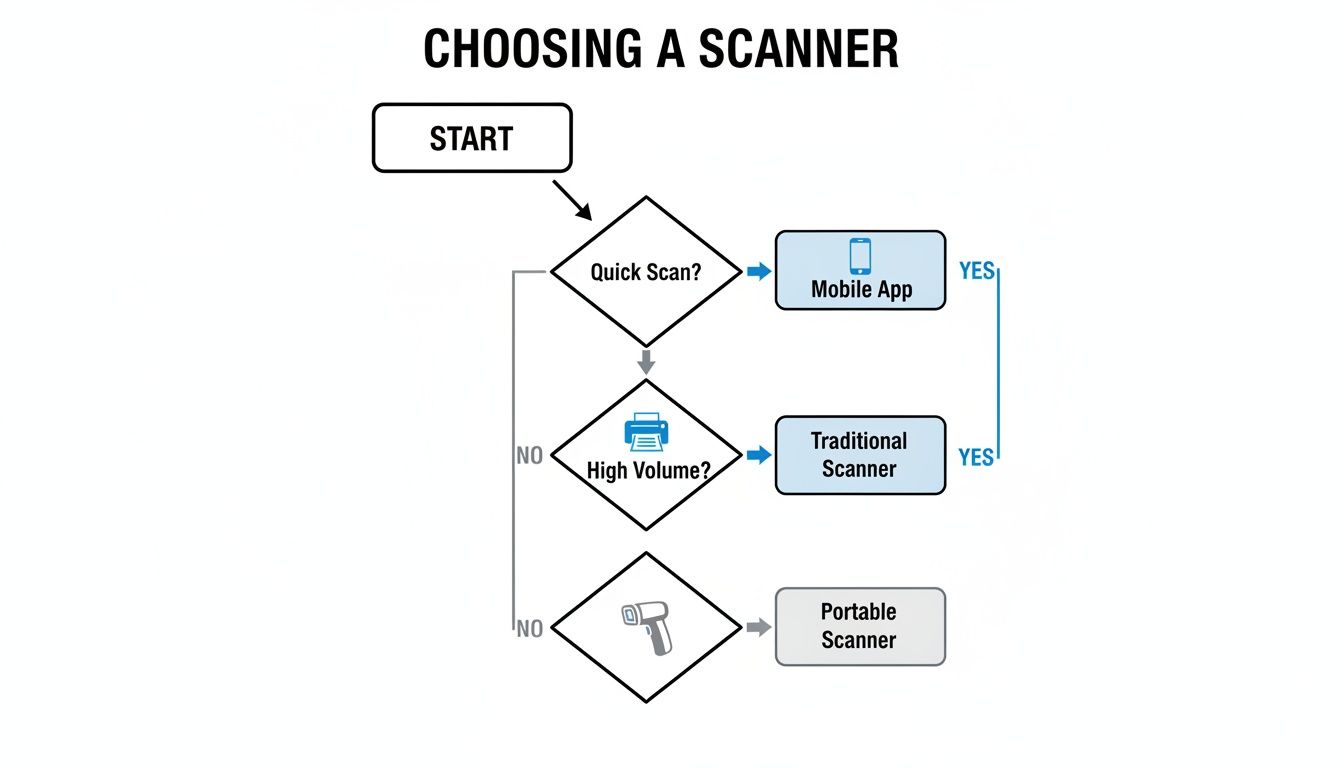
The long and short of it is this: for quick, one-off jobs like snapping a single receipt, a mobile app is your best friend. But if you’re tackling a mountain of paperwork, a dedicated scanner is going to be your workhorse.
A Quick Word on Compression: Lossy vs. Lossless
When you shrink a file, the magic behind it is called compression. There are two main flavours, and knowing the difference is the key to keeping your documents readable.
-
Lossless Compression: Think of this like expertly packing a suitcase. It cleverly reorganises all the data to take up less space, but it doesn't throw anything away. When you open the file, every single pixel is put back exactly where it was. This is absolutely perfect for text documents where you can't afford to lose any clarity.
-
Lossy Compression: This is more like panic-packing and ditching anything you think you won't need. It permanently deletes bits of data to make the file much, much smaller. For a photo, this might mean removing subtle colour shades your eye wouldn't notice anyway. But for a scanned receipt? It can turn crisp text into a fuzzy, unreadable smudge.
My two cents: For any kind of business document, always try lossless compression first. Only use lossy as a last resort, and always, always double-check the final file to make sure it's still legible. A slightly larger file is infinitely better than an unreadable one.
Practical Ways to Shrink Your Scans
You don’t need to buy expensive software to get your files under control. There are some great tools already on your computer, or just a click away online for free.
Using Your Computer's Built-in Tools
- On a Mac: This is a doddle. Open your PDF in the Preview app. Just go to
File > Export, and in theQuartz Filterdropdown menu, chooseReduce File Size. Job done. - On Windows: Windows doesn't have a direct PDF compressor, but you can use a clever workaround with the 'Print to PDF' feature. Open your PDF, hit
Print, and then selectMicrosoft Print to PDFas your printer. In the printer properties, you can usually find options to lower the quality or resolution, which shrinks the file.
Using Free Online Tools There are loads of brilliant, free online PDF compressors out there. Websites like Smallpdf or Adobe's own free compressor are fantastic. You just upload your file, and their servers do all the hard work for you. It’s quick, simple, and generally gives great results.
Combine Multiple Scans into a Single PDF
Please, don't be that person. Sending your accountant ten separate emails with one receipt in each is a guaranteed way to drive them mad. It’s so much more professional and manageable for everyone if you combine multiple scans into one neat, organised PDF.
Most PDF readers, including the free Adobe Acrobat Reader, and countless online tools let you merge files together. It’s usually as simple as dragging and dropping them into a window. Doing this creates one streamlined document that’s easy to file, easy to refer back to, and easy to send in a single email.
If you really want to get this right, it's worth taking a look at some recommended scanning practices and file formats to ensure you're getting the best results from the get-go.
Writing an Email That Gets Your Documents Noticed
You've done the hard part. You've scanned your document and got the file size just right. But don't hit 'send' just yet. How you write the email itself can be the difference between your attachment being actioned immediately or getting lost in a digital black hole.
Think of the email as the cover note for your attachment. A confusing or vague message just creates work for the other person, causing delays while they try to figure out what you’ve sent. A little bit of effort here really does go a long way.
Crafting a Subject Line That Works
Your subject line is prime real estate. It's the very first thing anyone sees, and it needs to tell them what’s inside at a single glance. Vague subjects like "Scanned Docs" or "Receipts" are the digital equivalent of a beige manila folder, easily overlooked and impossible to find later.
Get specific. A good subject line tells the recipient who it's from, what it contains, and why they should care.
Here are a few real-world examples that actually work:
- For an accountant: "Scanned Receipts for Q3 VAT Return - The Good Coffee Co."
- For a client: "Signed Contract for Project Alpha - Alex Smith"
- For HR: "Completed New Starter Forms - Jane Doe"
That kind of clarity helps them prioritise your email and file everything correctly on their end. It’s a small thing that saves everyone a bit of time.
Structuring the Email Body
Keep the body of your email short and sweet. You’re just providing context for the attachment, not writing a novel. A polite opening, a clear statement about what’s attached, and you're pretty much there.
I always find it helpful to list the attached files by name, especially if there's more than one. It's a simple double-check for both of you. For instance, you could say, "Please find attached the signed contract and the initial project brief we discussed."
If you’re sending photos, our guide on how to attach pictures in email has a few extra pointers you might find useful.
Before you send a massive file, it’s always a good idea to check with the recipient first. A quick heads-up about the file size can prevent it from bouncing back, and frankly, it’s just good manners.
Just drop them a quick note like: "Hi [Name], I've got the scanned [document name] ready to go. The file is about 15MB. Will that come through okay, or would a file-sharing link be better?"
Finally, a quick word on security. For really sensitive stuff like passports or bank statements, standard email isn't your most secure option. A much safer bet is to use a secure file-sharing service like Google Drive or Dropbox and just send the link. This also gets around any pesky attachment size limits and adds an extra layer of protection.
A Smarter Way to Send Scanned Documents
You've gone to all the trouble of scanning your documents, squashing them down to a decent size, and attaching them to an email. But what if you could just… not? For freelancers and small business owners, all that faff is a massive time-sink. Let's talk about a much better way to work.
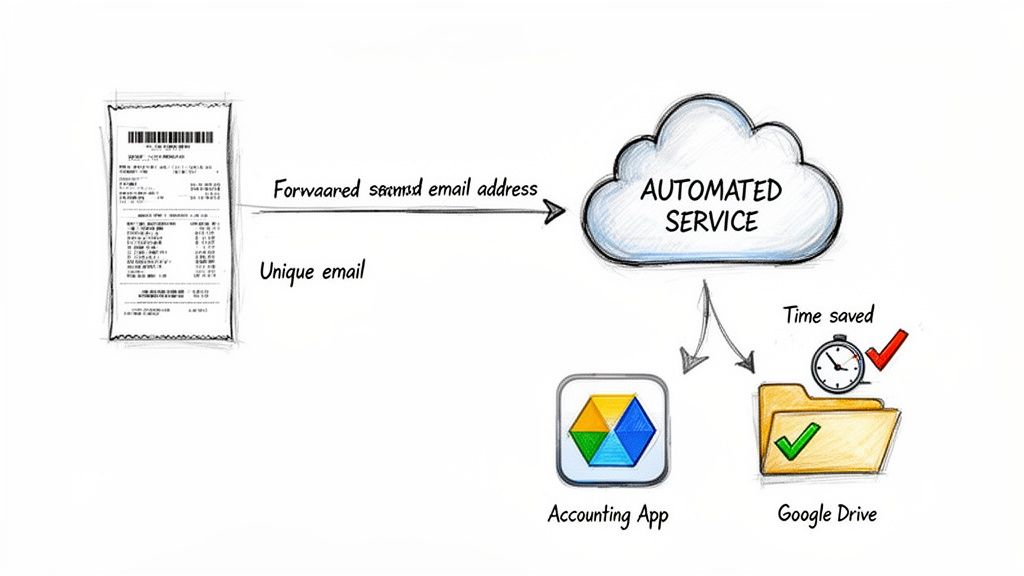
Imagine just hitting 'forward' on a receipt and knowing it’s sorted. No more worrying about attachment sizes or chasing your accountant to see if they got it. Tools like Receipt Router are built to make this whole headache disappear.
The Magic of Forwarding
Instead of drafting a new email every single time, you just forward the scan to a special, private email address. That's it. The system handles everything else.
It sounds almost too simple, but the impact is huge. An automated service can:
- Grab the email you forwarded, no matter how big the attachment is.
- Instantly process the document, whether it’s a PDF invoice or a quick photo of a lunch receipt.
- Pull out all the important details like the supplier, date, and total.
- File it away perfectly in your accounting software or a specific cloud folder.
This approach takes all the manual slog and guesswork out of your bookkeeping. We've written another guide on how a proper document management system can completely change how your business runs.
You only have to look at the history of UK email limits to see why this is so needed. Before 2013, HMRC's own online portal had a measly 10MB cap, causing chaos for sole traders trying to submit scanned forms. A recent study even found that 68% of small businesses get their attachments rejected every single quarter. That wasted time spent rescanning and compressing receipts costs freelancers an estimated £300 per hour. You can even learn more about the impact of government file size limits directly. Automation fixes this costly problem.
It's More Than Just Sending an Email
This isn't just about shaving a few minutes off your day. It’s about creating a bulletproof system that stops mistakes and makes sure you claim every single deductible expense.
Think about what this actually means in practice:
- You get your time back. No more compressing files, splitting PDFs into multiple emails, or writing the same cover note over and over. Just forward it and move on.
- Fewer human errors. The system reads the data for you, so you don't have to worry about typos when you're manually entering figures late at night.
- Perfectly organised records. Every invoice and receipt gets captured and filed in the right place, automatically. No more frantic shoebox-shaking at the end of the tax year.
It’s a complete shift in mindset. Instead of treating receipt management as a chore to be tackled later, it becomes an instant, automated part of your daily workflow.
Services designed specifically for UK contractors, like Receipt Router, can automatically match your forwarded scans to bank transactions in FreeAgent or file them away in Google Drive. For those using FreeAgent, this kind of setup has a real financial impact, helping them reclaim up to 20% more expenses each year. This is how you stop just sending documents and start building a smarter business.
Got a Few More Questions?
Even after you've got the hang of the basics, a few tricky situations can pop up. Let's run through some of the common questions I hear all the time when people are getting to grips with scanning and emailing documents.
What's the Best Format to Scan a Document for Email?
Nine times out of ten, PDF is the way to go. It's the universal standard for a reason. A PDF locks in all your formatting, so what you see on your screen is exactly what the other person will see, no matter if they open it on a Mac, a PC, or their phone. It just works.
Plus, if you've got a multi-page contract or report, you can bundle it all into one tidy file instead of sending a dozen separate images. While a JPEG is fine for a quick photo, for anything professional like invoices, signed agreements, or official receipts, you should stick with PDF. It looks cleaner and makes life so much easier for whoever you're sending it to.
My File Is Still Too Big for Email. Now What?
So you've compressed your file and it's still getting rejected by the email server? We've all been there. This is when you stop trying to attach the file directly and switch to a file-sharing service.
The trick here is that you're not actually emailing the file itself. Instead, you're sending a simple, secure link. The other person just clicks the link to download the document on their end.
Plenty of great, easy-to-use services can handle this for you:
- Google Drive
- Dropbox
- WeTransfer
This approach neatly sidesteps any email attachment limits. Honestly, it's often a more secure way to send large or sensitive files, and you'll never have to see that dreaded "Message Undeliverable" bounce-back again.
Is It Really Safe to Email a Scanned Copy of My Passport?
You need to be extremely careful with this one. Standard email is about as private as a postcard, so sending something as sensitive as a passport scan requires some extra security steps.
If you absolutely must send it via email, the golden rule is to password-protect the PDF file first. Most PDF tools, even the free ones, have this feature built-in. Then, and this is the crucial part, you need to send the password to the recipient through a totally different method. Give them a quick call or send it in a text message. Whatever you do, don't put the password in the same email as the file. That's like leaving the key in the front door.
Can't I Just Snap a Photo With My Phone Instead of Scanning?
You absolutely can! In fact, for most everyday business tasks like snapping receipts or single-page documents, it's often the quickest and easiest way to do it.
The cameras on modern smartphones are fantastic, and when you use a proper scanner app like Adobe Scan or Microsoft Lens, the results are brilliant. These apps are smart; they automatically straighten the document, get rid of shadows, boost the contrast, and save it as a crisp, clean PDF. It's often much faster than waiting for that old office scanner to warm up.
Tired of worrying about file sizes and bounced emails? Receipt Router automates the entire process. Just forward your scanned receipts to a unique email address, and we'll handle the rest, matching them in FreeAgent or archiving them in Google Drive. Discover how to save hours on your admin at Receipt Router.