A Stress-Free Guide to Bank Reconciliation on Sage
Performing a bank reconciliation on Sage is all about making sure the numbers in your accounting software line up perfectly with what’s actually happening in your bank account. You're essentially matching up every transaction to confirm that the money you've recorded coming in and going out is the real deal. This is the bedrock of accurate and trustworthy financial records.
Why Accurate Sage Bank Reconciliation Matters
Let's be honest, bank reconciliation can feel like a bit of a chore. But getting this process spot on in Sage is absolutely fundamental to running a healthy business. It’s so much more than just ticking off boxes; think of it as a crucial health check for your finances, especially for UK small businesses and freelancers.
It’s your financial early-warning system. If you skip it, you're essentially flying blind, making big decisions based on dodgy or incomplete data. To really get why it's so important, you need to understand the principles behind bank account reconciliation.
A solid monthly reconciliation gives you a true, up-to-the-minute picture of your cash flow. It's the only way to know for sure that the profit you see on paper is actual money in the bank, ready to be put to work.
The Real-World Impact
For freelancers and small businesses, it's easy to lose track of the sheer volume of daily transactions. According to the Bank of England, CHAPS payment volumes recently hit 213,676 daily, and many small business payments fall into this category. Trying to reconcile all of that manually can easily eat up over five hours a month. But the cost of not doing it is even higher: think overdraft fees, which average £45 per incident for SMEs.
Here’s why you simply can't afford to skip it:
- Spot Costly Errors: This is your chance to catch bank mistakes, missed payments from clients, or even fraudulent activity before they turn into serious headaches.
- Accurate Cash Flow: You get a crystal-clear picture of your available cash. This helps you avoid bounced payments and make much smarter decisions about where your money is going.
- Simplified Year-End: Keeping on top of your reconciliations every month makes your year-end accounting and tax submissions a whole lot smoother and less stressful.
I remember working with a freelance graphic designer who was brilliant at keeping up with his monthly Sage reconciliation. One month, he spotted a recurring charge for a software subscription he was sure he’d cancelled. By catching it then and there, he was able to claim back over £200 in wrongful charges. That’s cash he would have completely missed otherwise.
Getting Your Sage Account Ready for Reconciliation
Let’s be honest, jumping straight into a bank rec without a bit of prep is a recipe for disaster. It’s a common mistake, and it almost always leads to a world of frustration. Think of this part as your pre-flight check; spending a few minutes getting organised now will save you a massive headache later and genuinely cut your reconciliation time in half.
First things first, before you even look at your bank statement, make sure your own books are in order. This is non-negotiable. All your sales invoices, purchase invoices, and any other payments for the period you're reconciling need to be sitting in Sage. That pile of receipts you've been meaning to enter? Now’s the time to get them sorted.
Getting Bank Transactions into Sage
Once your day-to-day records are up to speed, the next job is to get your bank transactions into Sage. You’ve really got two main ways of doing this, and which one you choose depends on how many transactions you have and, frankly, how much you enjoy manual data entry.
-
Manual Statement Import: This is the old-school way. You log into your online banking, download your statement (usually as a CSV, QIF, or OFX file), and then upload it straight into Sage. It’s a perfectly fine option if you only have a handful of transactions each month or you’re just not keen on connecting your bank account directly.
-
Live Bank Feeds: This is where the magic happens. A bank feed creates a secure, direct link between your bank and Sage. Transactions are automatically pulled in every day, so the data is always there waiting for you. For most UK businesses, this is the way to go. It completely removes the faff of downloading and uploading files and massively reduces the chance of silly data entry mistakes.
Pro Tip: Before you start matching a single thing, get your actual bank statement open. Whether it's on a second screen or printed out beside you, having the official record right there to glance at makes cross-referencing against Sage so much easier. It's a simple trick, but it works.
Choosing Your Bank Transaction Import Method
Still on the fence about which way to go? This should help you decide.
A quick comparison to help you decide between manual imports and automated bank feeds for your Sage account.
| Method | Best For | Pros | Cons |
|---|---|---|---|
| Manual Import | Low transaction volumes, or those who prefer not to link bank accounts directly. | You have total control over when data comes in; no direct bank connection is needed. | It can be a real time-sink; much higher risk of missing a file or uploading duplicates. |
| Live Bank Feed | Most businesses, especially those with regular transactions. | It's completely automatic and saves a ton of time; virtually eliminates human error. | Takes a few minutes to set up initially; relies on a stable connection to your bank. |
By getting your Sage data organised and picking the right import method, you're setting yourself up for a much smoother reconciliation. If you find you're drowning in paper receipts, it's worth learning more about using a receipt scanner app to blast through that data entry even faster. Getting this foundation right makes all the difference.
Matching Transactions the Easy Way
Right, with all your prep work sorted, we can dive into the main event: the bank reconciliation itself. This is where you line up your bank statement with what you've recorded in Sage. It sounds tedious, I know, but it doesn't have to be a long, drawn-out chore. Sage is actually built to make this as painless as possible, especially with its clever matching suggestions.
Think of it as a game of snap. Your bank feed pulls in a list of all the money that’s come in and gone out. At the same time, Sage looks at the invoices and expenses you’ve already entered into the system. It then tries to find the perfect pairs. For example, when a customer payment for £150 lands in your account, Sage will automatically look for an unpaid sales invoice for that exact amount and suggest you match them.
This simple flow chart gives you a good idea of the process. Get your data in, pull the bank transactions, and then you're ready to start matching.
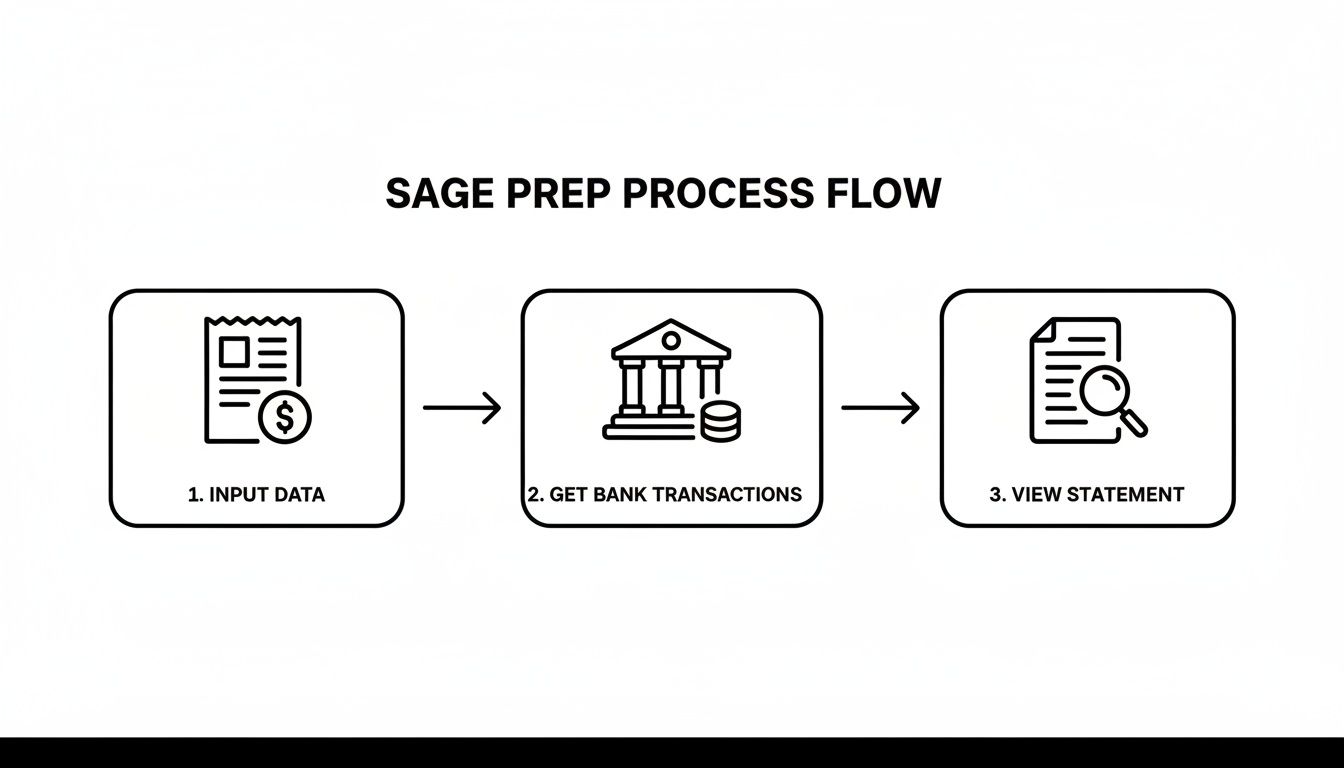
It really shows how getting your ducks in a row first makes the actual reconciliation job so much quicker and smoother.
Ticking Off the Easy Wins
My advice is always to start by clearing out the simple, one-to-one matches first. Sage is fantastic at this and often highlights these suggested matches in green, making them impossible to miss and easy to approve with a click.
You’ll probably find that a huge chunk of your transactions fall into this category:
- Direct Debits: Those regular payments for things like your Adobe subscription or the monthly phone bill will usually line up perfectly with the supplier bills you’ve entered.
- Customer Invoice Payments: When a client pays an invoice in full, Sage will spot the matching amount and link the bank payment directly to that sales invoice.
- Card Payments: That £25 you spent on fuel with the company debit card? Sage will find the expense receipt you logged and offer it up as a match.
Seriously, by just clicking ‘OK’ or ‘Confirm’ on these straightforward suggestions, you can often clear 70-80% of your transactions in a matter of minutes. It’s incredibly satisfying watching that list of unmatched items get smaller and smaller. This quick pass builds momentum and leaves you with a much shorter, more manageable list of the tricky bits to sort out.
A Practical Walkthrough in Sage
When you open the reconciliation screen, you'll see your bank transactions listed on one side and your Sage records on the other. For those perfect matches Sage flags up, it’s literally a case of giving them a quick once-over and confirming. Let’s say you see a £50 payment from "Client A" on your bank feed; Sage should automatically highlight the £50 sales invoice you raised for them. One click, and it’s done.
Here’s a little tip from experience: if a match isn't immediately obvious, use the sort function. If you're hunting for a specific payment, try sorting the list by amount or by date. It's a simple trick that can bring the transaction you need right to the top, saving you from an eternity of scrolling.
While Sage has its own quirks, the fundamental principles of matching are universal. If you want a solid grounding in the basics, it's worth learning how to reconcile bank accounts properly, as this knowledge applies no matter what software you're using.
Focusing on these easy wins first is the smartest way to tackle your bank reconciliation in Sage without the headache. You get the bulk of the work done fast, leaving you with more time and brainpower to investigate the more complicated discrepancies, which we'll get into next.
Let’s be honest, a bank reconciliation that matches perfectly on the first go is a thing of myth and legend. For the rest of us, there are always a few stubborn items that just refuse to line up. When you hit that wall, this is your go-to guide for sorting out the most common headaches.
Don't panic when things don't immediately click into place. A few discrepancies are completely normal and usually have a simple fix once you know where to look. Most of the time, it's just a case of timing differences, sneaky bank fees, or a customer paying in a slightly weird way.
Dealing with Lump Sum Payments
A classic reconciliation puzzle: a customer pays for a bunch of invoices with one single payment. Your bank feed shows a nice round £500, but in Sage, you've got three separate invoices for £200, £150, and another £150. Sage’s automatic matching will just stare blankly at this because no single invoice equals £500.
This is where you need to give it a helping hand. Instead of trying to find a single match, Sage lets you group things together.
You just need to:
- Find that lump sum payment in your bank feed.
- Instead of letting it match automatically, choose the option to manually find and match.
- You'll see a list of all your outstanding sales invoices.
- Just tick the boxes for the invoices that make up the payment. Sage will do the maths, and once the total hits the payment amount, you can confirm it.
Doing this turns a confusing mess into a tidy, reconciled transaction. It also means each of those individual invoices gets marked as paid, keeping your sales ledger and customer accounts spot-on.
Creating Transactions on the Fly
What about when you spot something on your bank statement that’s completely missing from Sage? It happens all the time. An unexpected bank charge, a bit of interest paid, or that card payment for coffee you completely forgot to log. The good news is you don't have to back out of the reconciliation screen to sort it.
Sage is built for this. Right next to that unmatched bank line, you’ll see an option to create a new transaction.
My advice? Deal with these the second you see them. If you spot a £10 bank charge, use the 'Create' button right there to post it. It's so much faster than making a note and trying to remember to do a whole batch of them later.
This little feature is a real time-saver for those small, unrecorded bits of income or expenditure. You can create the record, pop it in the right category (like 'Bank Charges' or 'Interest Income'), and get it reconciled in one smooth move without breaking your concentration.
Handling Bounced Payments and Refunds
Bounced payments and refunds can really throw a spanner in the works. A customer's cheque might bounce, or you might have to refund someone for a return. These transactions need to be handled carefully to stop your accounts from going haywire.
- Bounced Payments: When a payment gets returned unpaid, you have to reverse the original entry. In Sage, the easiest way is often to create a 'money out' transaction for the same amount, linked back to the customer. This cancels out the 'money in' and, crucially, re-opens the original invoice so you can chase it up again.
- Customer Refunds: A refund will show up as money leaving your account. The proper way to handle this is to raise a credit note against the customer's original invoice. Then, you can simply match the refund payment from your bank feed to that credit note. This keeps your sales figures accurate and leaves a clean audit trail.
Getting your head around these corrections is a huge part of mastering your bookkeeping. If you want to dive a bit deeper into the principles behind it all, our guide on bank statement reconciliation is a great place to start. Nailing these adjustments is what keeps your financial picture crystal clear.
Want to Reclaim Your Time? Let Automation Do the Heavy Lifting
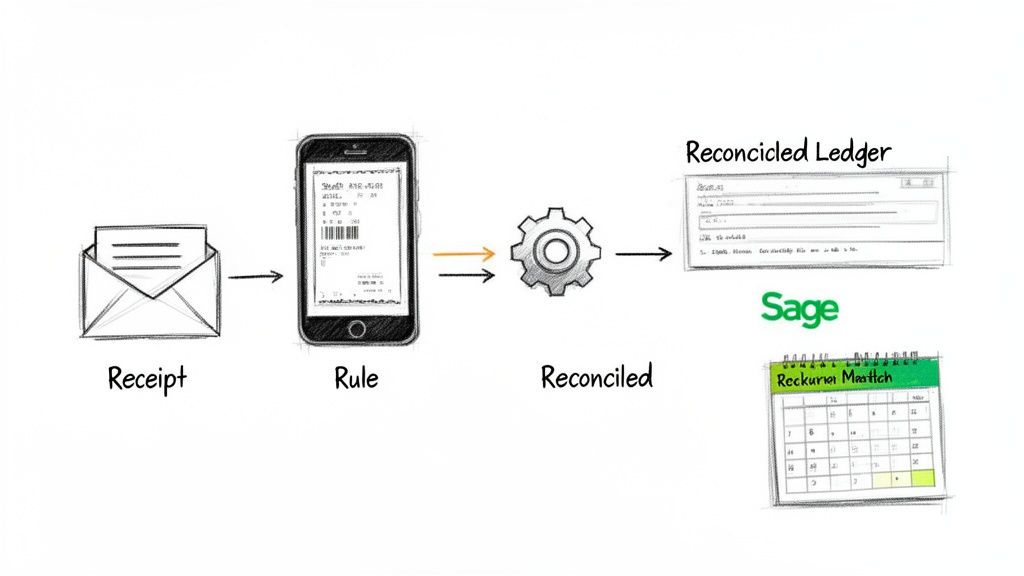
Right, once you've got the hang of reconciling your bank accounts in Sage manually, it’s time to get clever. This is where you can win back hours of your life. The real magic of modern accounting software isn't just about keeping records; it’s about automating the boring, repetitive tasks that eat up your day.
By setting up a few smart rules, you can essentially teach Sage how to handle all the predictable transactions that pop up on your bank statement every month. This is how you shift from tedious data entry to a quick, final review.
Get Clever with Bank Rules
Think about all those payments that go out like clockwork every month. Your phone bill, that software subscription, the office rent: they're always there. Instead of finding and matching them one by one, you can create a bank rule.
A bank rule is just a simple instruction you give Sage. You tell it what to do whenever it spots a transaction from a specific company. For example, you can create a rule that says any payment to "EE Limited" should automatically be posted to your "Telephone" expense account.
Honestly, this is a total game-changer. Your monthly bank rec transforms from a manual slog into a quick sanity check to make sure the rules have done their job. I've seen this simple tweak handle over 50% of a company's monthly transactions without anyone lifting a finger.
Tame the Receipt Mountain
The next step is to tackle that Everest of paper and email receipts. This is where tools like Dext (which you might remember as Receipt Bank) or other integrated apps come into their own. Just imagine forwarding an email receipt and seeing it pop up in Sage, perfectly coded and ready to be matched.
This completely does away with manual data entry for receipts. A quick photo or a forwarded email is all it takes. You'll never lose a receipt or miss a chance to claim a deductible cost again.
This is a lifesaver, especially for freelancers or small business owners who are constantly out and about. Snapping a picture of a receipt the moment you get it puts an end to that mad dash to find crumpled bits of paper come month-end.
It creates a seamless flow of information, right from the point of purchase to the final reconciliation.
- Email Forwarding: Just forward digital receipts from places like Amazon or Stripe to your unique email address. The software pulls out all the key data and creates the transaction in Sage for you.
- Mobile Apps: Snap a photo of a paper receipt on your phone. The app’s built-in OCR (optical character recognition) technology reads the details and pings them straight over to your accounts.
When you combine Sage’s bank rules with automated receipt capture, you build an incredibly powerful, time-saving system. If you want to dive deeper, you can learn more about the wider world of automation in accounting and see how it’s changing the industry. It really is all about working smarter, not harder.
Your Sage Bank Reconciliation Questions Answered
Even with the best prep work, you’re bound to run into a few head-scratchers during a bank rec. It just happens. But instead of getting bogged down and losing half an hour searching for answers, I’ve pulled together some quick fixes for the most common issues that crop up when doing a bank reconciliation on Sage.
Think of this as your personal cheat sheet for those little snags that can grind your whole day to a halt.
How Often Should I Reconcile My Bank in Sage?
For most UK small businesses and freelancers, once a month is the sweet spot. Honestly, it’s the perfect rhythm. It’s frequent enough that you’ll catch any weirdness early on before it snowballs, but not so often that it feels like a never-ending chore.
A monthly routine lines up nicely with your bank statements, too. If you let it slide for a whole quarter, or worse, until the year-end, you’re turning a straightforward task into a monster of a job. Trust me, nobody wants to face that.
My Sage Bank Feed Imported Duplicate Transactions. What Do I Do?
First off, take a breath. It happens more often than you'd think, so don't panic. If your bank feed has thrown a few duplicate transactions into the mix, the cleanest and safest thing to do is delete them before you even start reconciling.
Just go through your bank feed screen carefully and get rid of the extras manually. If you try to reconcile them, you’ll just be creating errors in your books that are a real pain to unravel later on.
Pro Tip: If the bank feed seems to be acting up regularly, it’s worth checking the official Sage status page and having a quick look at your online banking portal. Sometimes there are known technical glitches. Often, the easiest fix is to simply disconnect the feed and securely reconnect it.
Why Does My Reconciled Balance in Sage Not Match My Bank Statement?
Ah, the classic reconciliation headache. We’ve all been there. The very first thing you should check is that the statement end date and the closing balance you typed into Sage are 100% correct. A simple typo is the culprit more often than not.
If that’s all correct, work out the exact difference between the two balances. Then, scan your transaction list for that specific amount. It could be something you ticked by mistake or missed entirely. Also, keep an eye out for transposed numbers; entering £89 instead of £98 is an easy slip-up. If you’re still stuck, you might have to go through your statement line-by-line against the Sage screen. It’s tedious, I know, but it always uncovers the error in the end.
Stop letting receipt management slow you down. Receipt Router gives you a unique forwarding address to automate your entire receipt workflow, from capturing data to matching it in your accounting software. It’s the set-and-forget solution for freelancers and small businesses. Start saving hours every month at Receipt Router.